
Delete Your DeerBrain Account
DeerBrain app · by DeerBrain
You can delete your DeerBrain account yourself, inside the app. If you no longer have the app, email us.
Delete it in the app
-
STEP 1
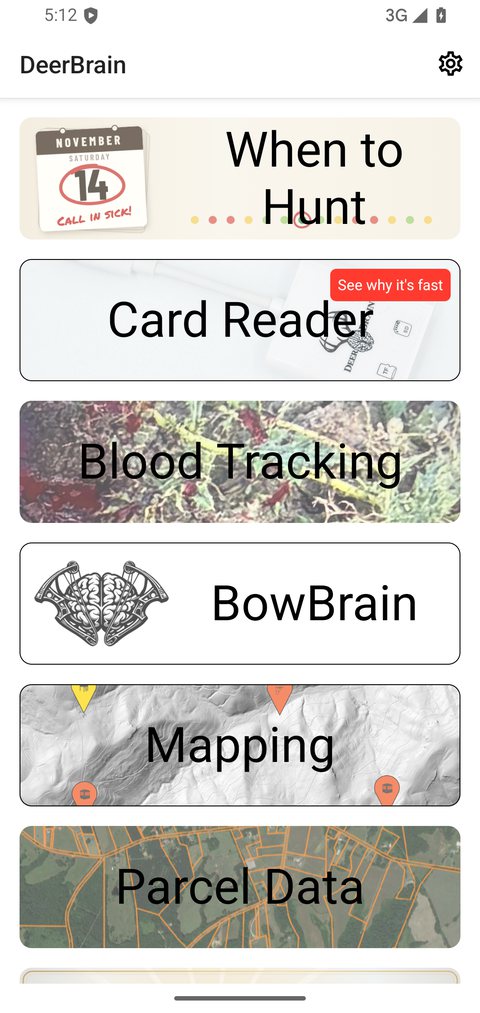
Open DeerBrain and tap the gear
On the main menu, tap the gear in the top right corner.
-
STEP 2
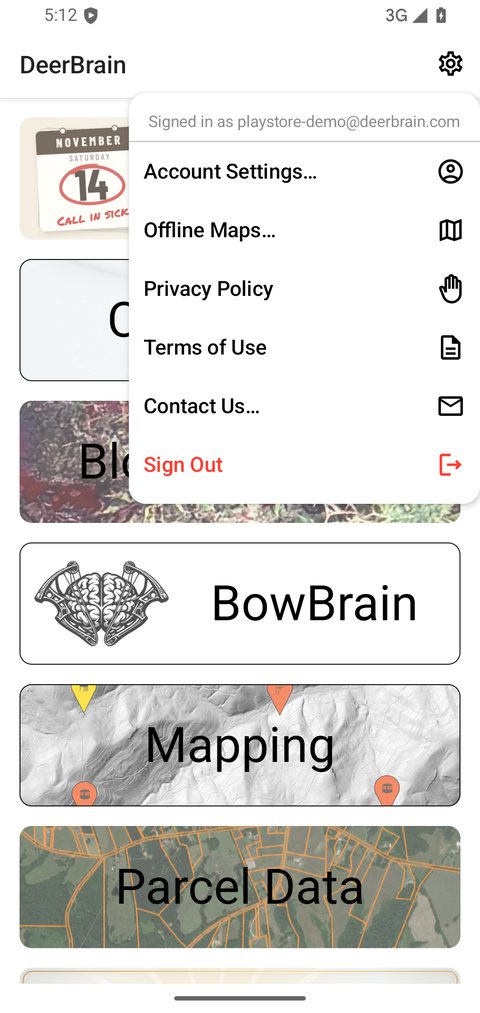
Tap Account Settings…
The menu shows the email you're signed in with. Tap Account Settings…
-
STEP 3
Tap Delete Account
Under your email and name, tap Delete Account.

-
STEP 4
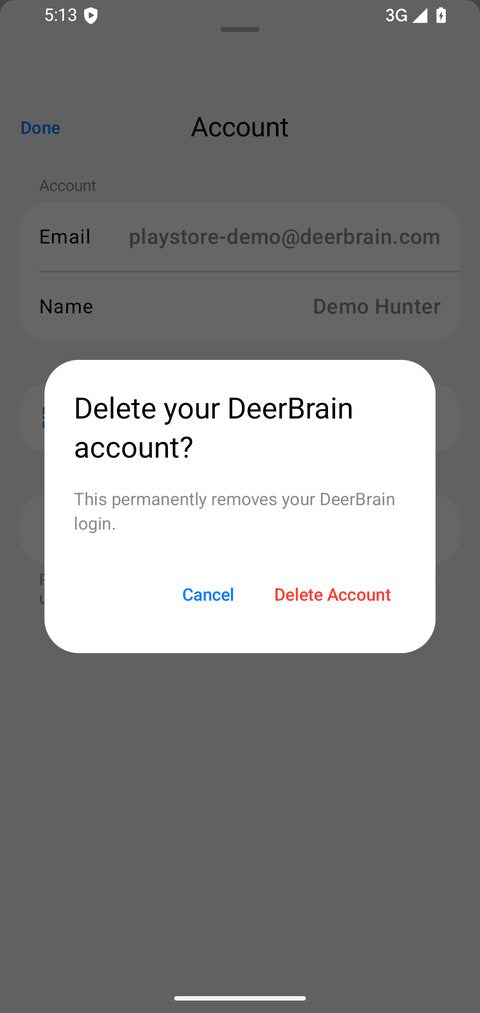
Confirm
The app asks "Delete your DeerBrain account?" Tap Delete Account.
-
STEP 5
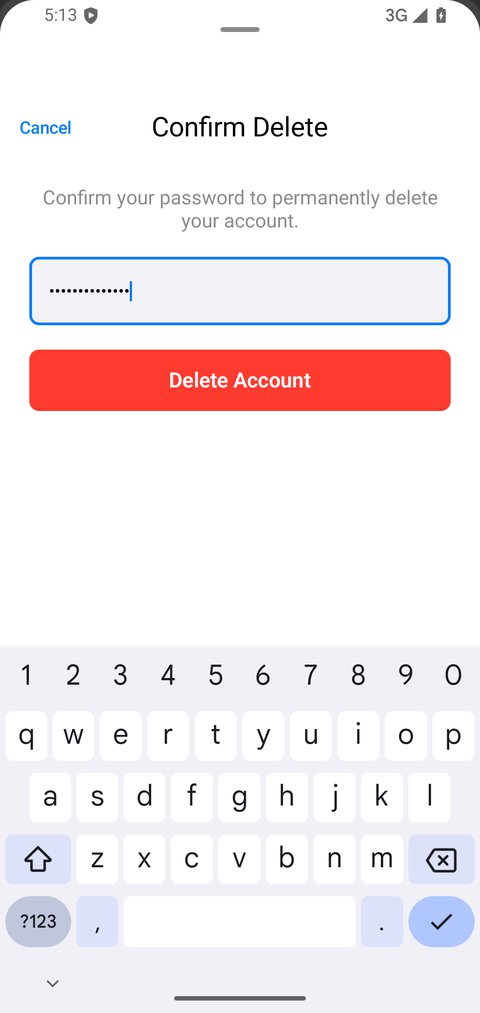
Enter your password
Type your DeerBrain password and tap Delete Account. This can't be undone.
-
DONE
Your account and data are deleted
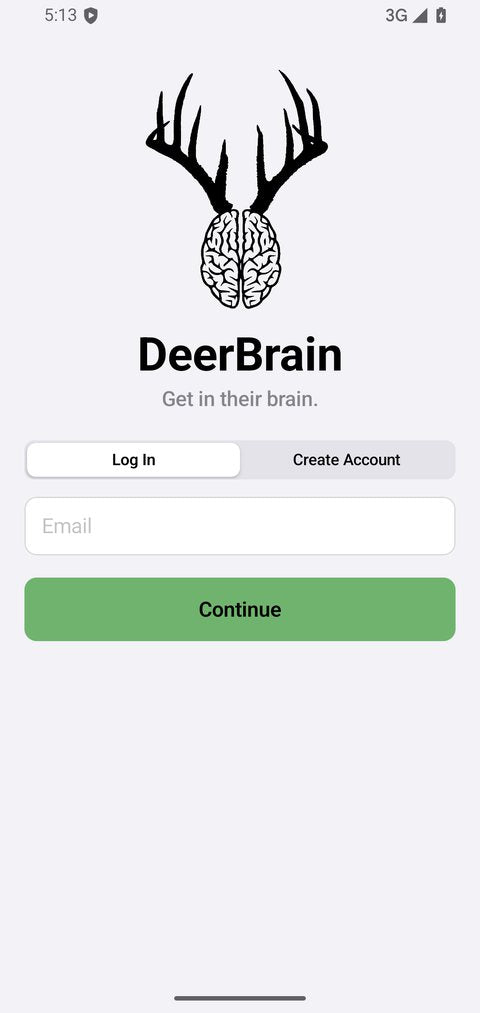
DeerBrain signs you out and goes back to the sign-in screen.
Don't have the app any more?
Email us from the address you signed up with and ask us to delete your DeerBrain account.
What gets deleted
Deleting your account permanently deletes your DeerBrain account and the data tied to it:
- Your login: email address and password
- Your profile: name, sign-up date, and device model
- How you used the app
- Maps you made: properties and drawings
- Any photos you provided
- Blood Tracking reports and feedback you sent
We may keep some information for as long as needed for legal reasons, such as purchase records, security, and fraud and abuse prevention.